Written by Julia
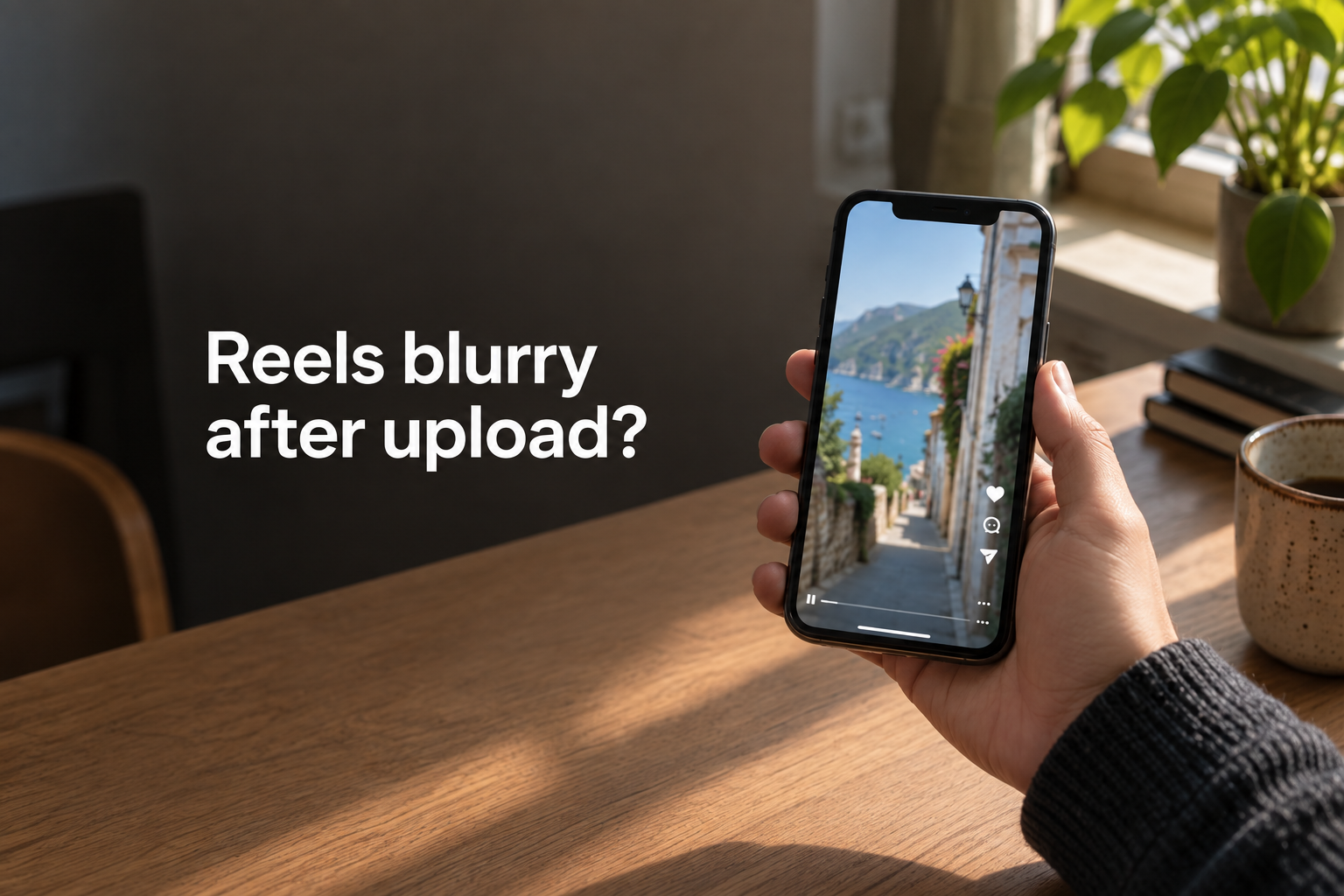
Instagram Reels can look blurrier after upload because Instagram creates different playback versions of a video, and the version shown can change with network conditions. Turning on “Upload at highest quality” does not guarantee that every viewer will see the same detail as in your saved file.
If your saved video looks clear and the setting is already on, compare the original clip, the exported file, and the posted Reel to find where the visible change begins.
What happens to a video after you upload it?
Meta describes creating multiple versions of an uploaded video for playback. These versions can differ in resolution and visual quality. The player can switch between them as network conditions change. Meta explains this process in its 2026 article about video processing.
Its earlier explanation of Reels delivery describes selecting a version suited to the viewer’s connection speed to help avoid playback stalls.
These technical explanations describe how video delivery works. They cannot identify the cause of blur in a particular post or reveal which playback version a viewer received from a screenshot alone.
Check the file you actually uploaded
Before changing your edit, open the exported video in your phone’s photo library. Compare it with the original clip at the same moment, looking at something easy to recognize, such as a small sign or the edge of an object. Keep the viewing size similar.
If the clip you started with is already blurry, review the recording or, if someone sent it to you, ask for the original file. If the exported file is softer than the original, revisit the edit and export. If both local files look clear, move on to the Instagram checks below.
When the change appears in the export, check whether you enlarged the clip substantially and review the selected export resolution. Change one setting at a time so you can tell whether it made a visible difference.
In VDIT, open Share or Save to see Resolution and FPS, then use Save to Photos to review the exported file.

Resolution describes the image dimensions. FPS describes the number of frames per second. Raising both numbers is not a general fix for blur, so avoid treating the highest available values as a requirement.
Why is my Reel blurry even with high-quality uploads on?
Instagram still creates and serves different playback versions when Upload at highest quality is on. The setting does not make every version identical to the file saved on your phone.
In Instagram’s Media quality settings, check Upload at highest quality. If it is off, turn it on for future uploads. If it is already on, leave it on and continue with the comparison below.

Why does the same Reel look different on another phone?
Instagram can select different playback versions as network conditions change, so two viewers may see different levels of detail in the same Reel.
Before editing again, watch the same post on another connection or device. If its appearance changes, that is a reason to consider viewing conditions. Treat this as a comparison, not a guaranteed fix.
If your exported file is clear but the posted Reel remains softer, changing export settings may not remove the difference for every viewer. You can review the file you upload, but you cannot choose the playback version Instagram serves to each person.
Keep the original clip and the exported file. If you decide to test another export, change one setting and compare the result with those saved copies. This makes it easier to see whether the adjustment helped.
Sources and further reading
- Engineering at Meta. FFmpeg at Meta: Media Processing at Scale (2026-03-02). Explains how Meta creates multiple playback versions and selects between them based on network conditions.
- Engineering at Meta. How Meta brought AV1 to Reels (2023-02-21). Describes video encoding and adaptive streaming for Facebook and Instagram Reels.




Leave a Reply