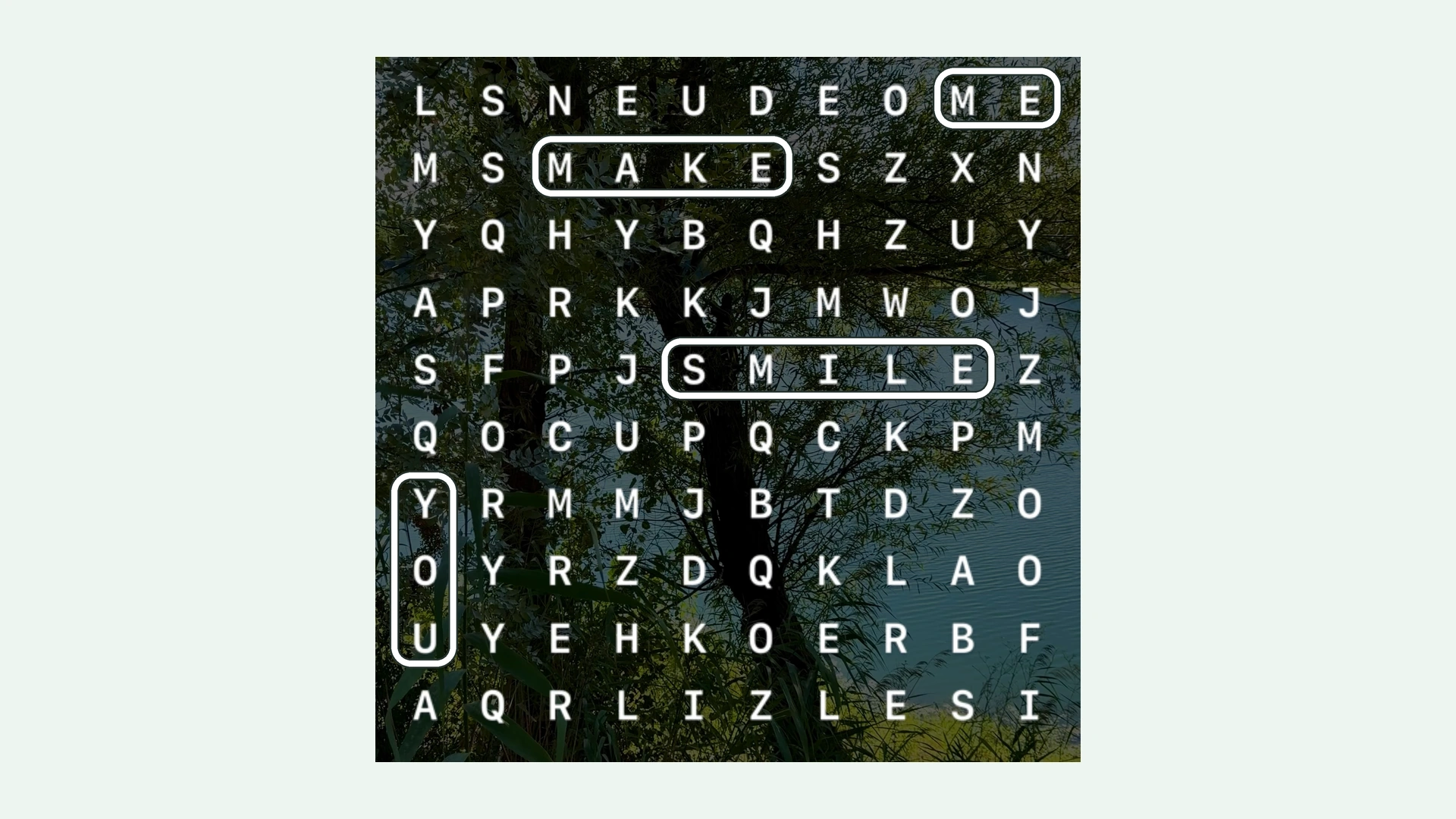
A word search is a puzzle with words hidden in a grid of letters. Part of the fun is spotting a familiar word where, a second ago, you saw only a jumble of letters.
You can spot word searches in Reels, too. A grid appears over the footage, and four words are circled one by one: YOU, MAKE, ME, SMILE. By the last circle, you have a message for the person watching. What would you hide in yours?

Start with words that belong in your video
A short sentence gives the viewer something to read when the circles are complete. A few related words can work as a title for a vlog.
| Your video | Words to try | What they add |
|---|---|---|
| A message for someone | YOU MAKE ME SMILE | A sentence to reveal in order |
| A café visit | BAKERY LATTE CAFE | A small title for the setting |
| An autumn diary | AUTUMN DAILY VLOG | A theme for a collection of clips |
These are starting points. Replace them with words that fit the person or day you filmed. The board accepts English words; changing the website’s interface language does not translate your message.
Make the board
Open the Word Circle maker and switch the interface to English if needed. The current page header calls the tool Word Search.
- Open Words, enter your English phrase and select Create.
- Check the board. Use Grid and Style to adjust its layout and appearance.
- Choose a combination that keeps the letters easy to read against your video.
For the first attempt, use a short phrase rather than filling the board with a long list. You will need enough space to see both the letters and the circles.

Save the version you need
Select Save to open the image options. If you plan to draw the circles in VDIT, choose Puzzle PNG, which saves the letters without circles. Enable the transparent-background option if you want the video to show through behind the letters.
Current view PNG includes the circles currently displayed. Answer PNG circles every hidden word. The save window notes that the image includes a VDIT watermark. Select the image you want, then use the save button at the bottom of the window.

Place it over your video
- Open your background video in VDIT and tap PIP.
- Select the saved PNG and tap Add.
- Adjust the board’s size, position and visible duration.
PIP places the board over your footage. Open Drawing to circle the words on the board.
For a sentence such as YOU MAKE ME SMILE, reveal the words in that order. Give the completed message a moment on screen. For a café title, you can show the three marked words together instead of turning it into a puzzle the viewer must solve.
Drawing animation depends on the VDIT feature you use; some editing features require VDIT Pro. The website exports a still image, not an animated video.

Keep the letters readable
If the footage is busy, use a quieter section of the shot or move the board into an area with less detail. Keep stickers away from the words and avoid shrinking the grid to make room for more decoration.
Make your own board, then use VDIT for iPhone if you want to build it into a video.