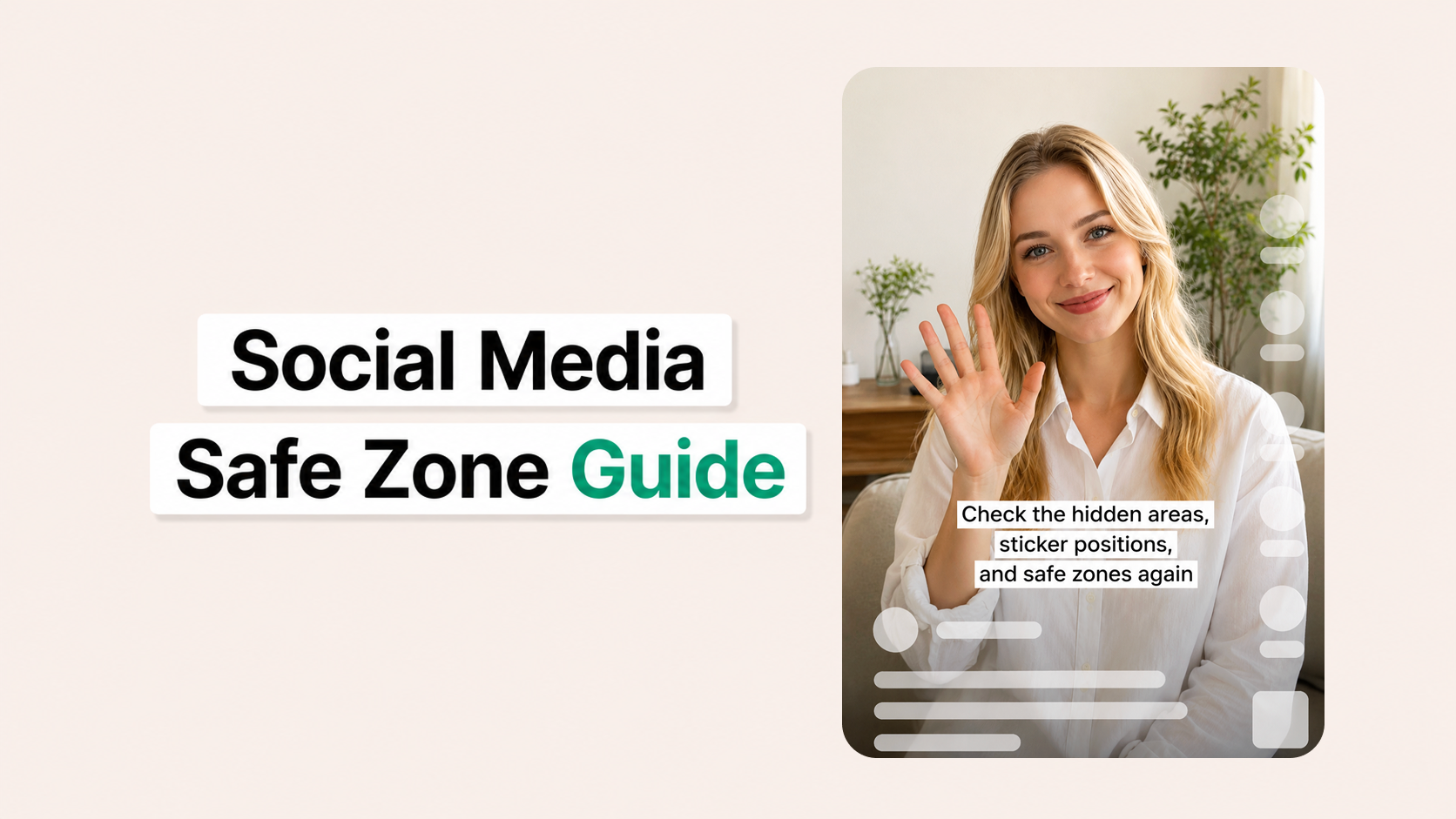
If your video title, subtitles, or stickers look fine while editing but get covered after uploading, the issue is usually related to the social media safe zone.
A social media safe zone is the area of a video where important text and visual elements are less likely to be hidden by platform buttons, captions, usernames, icons, or description areas. This is especially important for short-form videos on Instagram, TikTok, YouTube Shorts, and other vertical video platforms.
When text is placed too close to the edge, bottom, or side of the screen, it may look perfectly fine in your editing app. However, once the video is uploaded, the platform interface can cover part of your title, subtitles, CTA, or stickers.
By checking the safe zone before saving your video, you can reduce the chance of having to re-edit and export the same content again.

Why the Social Media Safe Zone Matters
Short-form videos are usually watched inside an app interface, not on a clean blank screen. After upload, your video may be displayed with several interface elements around it, such as:
- Like, comment, share, or save buttons
- Account names and profile icons
- Captions or video descriptions
- Music or sound information
- Platform labels or interactive buttons
Because of this, the full video canvas is not always the safest place for important text. Even if your subtitle placement looks balanced while editing, it can become difficult to read after upload.
This is why checking the video safe zone before exporting is important. It helps you preview where key text should stay so viewers can actually read it.
Common Problems Caused by Ignoring Safe Zones
If you have ever searched for issues like “video text not showing” or “captions covered after upload,” the problem may not be the video file itself. In many cases, the text is still there, but it is hidden behind the platform’s interface.

Common examples include:
- Subtitles placed too low and covered by captions or descriptions
- CTA text hidden behind buttons on the right side
- Titles placed too close to the top edge
- Stickers or labels overlapping with usernames or icons
- Important product names becoming hard to read after upload
For creators, this can be frustrating because the video may need to be edited, exported, and uploaded again. A quick safe zone check can prevent that extra work.
What Should Stay Inside the Safe Zone?
Not every visual element needs to be inside the safe zone. Background images, decorative stickers, and non-essential design elements can often extend beyond it.
However, important content should stay in safer areas whenever possible. This includes:
- Video titles
- Subtitles and captions
- Product names
- Promotional text
- CTA phrases such as “Tap to learn more”
- Important stickers or labels
- Key visual information that viewers must understand
A simple rule is this: if viewers need to read it or understand it quickly, keep it inside the safe zone.
How to Check Safe Zones in VDIT
Open VDIT and go to [Canvas]. The [Canvas] menu is where you can adjust the video format and preview how your content fits different screen layouts.
Then choose from a social media platform format such as Instagram, TikTok, or another supported social media format.

VDIT will display the safe zone guide for the selected platform, allowing you to preview areas that may be covered by buttons, captions, profile information, or other interface elements.
This helps you place titles, subtitles, stickers, and CTA text in safer positions before exporting your video.
Instead of discovering visibility issues after uploading, you can check and adjust everything during the editing process.
Safe Zone Tips for Instagram, TikTok, and YouTube Shorts
Each platform has a slightly different interface, so one layout may not work perfectly everywhere. A title that looks safe on one platform may feel too low or too close to a button area on another.

For Instagram safe zone checks, pay attention to caption and profile areas. For TikTok safe zone checks, be careful with the right-side button area and lower text areas. For YouTube Shorts safe zone checks, make sure important text does not sit too close to the bottom or side interface zones.
If you plan to upload the same video to multiple platforms, use a layout that keeps your most important text closer to the center. This gives your video more flexibility across different social media apps.
Before Saving Your Video
Before exporting your final video, take a few seconds to check:
- Is the title easy to read?
- Are subtitles inside the safe zone?
- Are stickers covering important information?
- Is CTA text visible without overlapping buttons?
- Does the video still look balanced after adjusting text placement?
This small step can help you avoid re-editing the same video after upload. The social media safe zone helps keep titles, subtitles, stickers, and important text visible after upload.
Instead of guessing where your text should go, check the safe zone before saving your video. In VDIT, you can open [Canvas] > [SNS], select platforms like Instagram or TikTok, and preview platform-specific safe zones while editing.
Make your next short-form video easier to read and ready to upload with VDIT.





Leave a Reply